

A look at Casio’s new CW+ calculators
Introduction: the new CW+ models
Three years ago Casio discontinued their popular Classwiz fx-83/85 GTX (GCSE) and fx-991EX (A-level) models, replacing them with the Classwiz fx-83/85 GT CW and the fx-991CW respectively. I expressed my opinion of the new models quite volubly in this post; it was not positive, to put it mildly, and even years later I still detest the new models and always gravitate towards my 991EX if I have the choice. And I’m far from alone in my feelings about the CW models.
However, Casio has just (January 2026) launched new “Classwiz+” models which address some of the biggest irritations that users have expressed about the original CW models, including those that I highlighted in my earlier blog post. It’s good to know that someone at Casio is listening to us! I’m still not sure that I’ll be won over, but I’m glad to see that there genuinely are some significant improvements.
The new models are the fx-83 GT CW+ and fx-85 GT CW+ for up to GCSE, and the fx-991CW+ for A-level – so they’re exactly the same model names as the existing ones, except with a “+” suffix. You can find them – together with the older CW models – on Casio’s official site here.
As with previous models, the only difference between the 83 and the 85 is that the 85 has solar as well as battery power. As well as black, the fx-83 GT CW+ comes in blue (quite a bright turquoise), pink and grey, while the fx-85 GT CW+ is available in pale blue, green and white.
I’m amazed that they’re doing grey again; I bought a grey one three years ago and had to return it as unfit for purpose because the text for the shift functions – in yellow – was illegible in all but the very brightest light, and they discontinued it soon afterwards. And yet the new model uses the same colour scheme! As I said before, what numpty thought it would be a good idea to use yellow text on a pale grey background?!
I don’t (yet) have the physical calculators themselves, but I have access to their functions because they have appeared among the models available on Casio’s online emulator, which purchase of a CW (or, presumably, CW+) calculator gives you access to via the QR code on the screen.
What’s changed?
As you can see from the (emulator) images below, the differences in appearance are minimal. The OFF label is more prominent on the new models but otherwise the hardware looks the same. On the A-level model the menu order has changed – presumably to put more frequently-used modes closer to the top – and you might spot another difference between old and new in the appearance of the on-screen menus; more on that shortly.
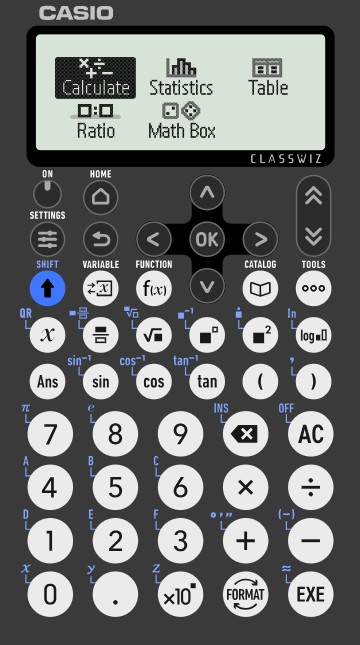
fx-83/85 GT CW
(old GCSE model)
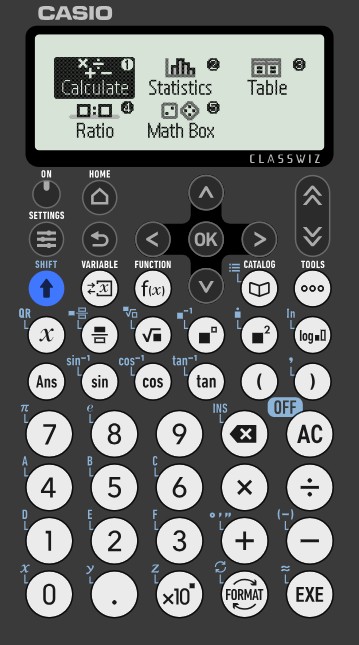
fx-83/85 GT CW+
(new GCSE model)
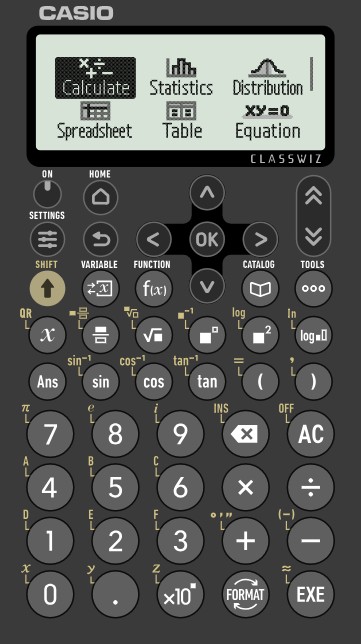
fx-991CW
(old A-level model)
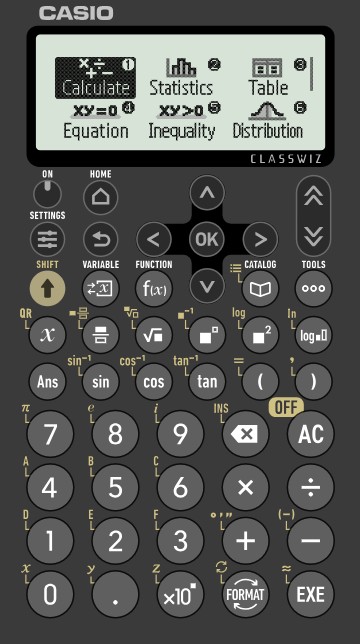
fx-991CW+
(new A-level model)
Casio says that the improvements to the 991CW+ include:
- New functionality: HCF, LCM and recurring decimals
- S<>D is easily accessible in one-press via the updated FORMAT key toggle
- Shortcuts are readily available in all menus by using the represented number keys for efficient navigation
- Standard Form conversion via [shift] FORMAT menu
- [shift] CATALOG provides quick access to the most-used functions
- A calculator designed and optimised for UK curriculums
… and all except the last bullet point are also applicable to the GCSE model – although in the emulator, even those have a “UK” suffix.
Casio is also making quite a big thing of how environmentally friendly they are, using recycled materials. Of course, using recycled materials is a positive… but when they’re giving us a new set of models every three or four years, that causes the old models to become obsolete more quickly than necessary, with students being encouraged – or even told – to buy the latest model because that’s what their teacher will be using for demonstrations.
I’m still happily using the fx-991EX that I bought in 2017 and there’s absolutely nothing wrong with it, but the operation of the CW series is very different. Mind you, if I was stuck with only a CW then I would certainly be tempted to replace it with one of the new CW+ models.
So how do the new functions work?
Keyboard shortcuts
Below is a close-up of the Home menu on the fx-991CW+. You can see that each menu option now has a number next to it. The old X models had these (albeit with plain-text menus rather than icons) and to select the option you wanted, you simply had to press that key. I’ve never understood why they did away with them when the CW models came in, so it’s a great relief to see that they’ve been reinstated.
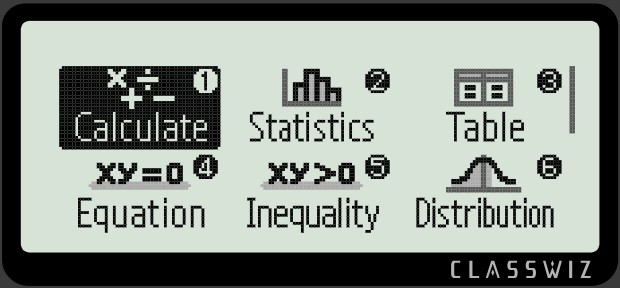
For example, from the Home menu, if I want to generate a table of values (menu option 3) then I can simply press the 3, where previously I had to use the arrow keys to navigate to that option and then press either OK or EXE. So in this example that’s three key presses (→ → EXE) replaced by just one.
A vast improvement! And it applies to all menus, not just the Home one – though some options have to use symbol keys since there are more menu items available on a screen than single-digit numbers.
[shift] CATALOG and some of its uses
Pressing the SHIFT button and then the CATALOG button now brings up a menu of frequently-used functions. It does depend on what screen you’re on; if the screen is showing a choice of menu options then you’ll need to choose one before [shift] CATALOG will work. The options offered also vary depending on which mode you’re in.
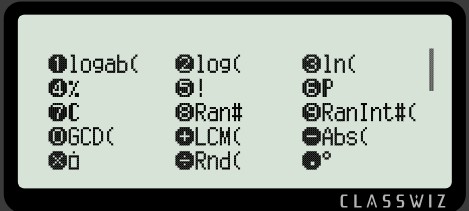
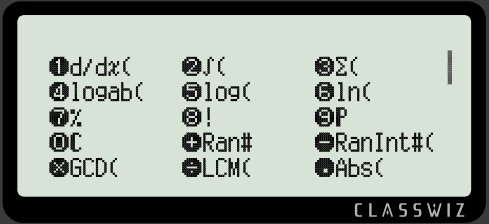
The images below show the first page of options on the GCSE and A-level models respectively, in Calculate mode (option 1 from Home menu). As you can see, there’s a scroll bar on the right-hand side to give access to more. The GCSE model has three screens of options and the A-level one extends onto a fourth screen.
Let’s take a look at a few of them:
HCF and LCM
To find the highest common factor (HCF) of two numbers, you need to go into the [shift] CATALOG menu, and select option 0, GCD. (This stands for Greatest Common Divisor, which I believe is the American equivalent expression; I do wonder why they couldn’t change it to HCF for what they claim is a UK-specific model!)
The same function is also available by pressing the CATALOG button and then selecting 3 (Numeric Calc) and then 1 (GCD).
When “GCD(” appears on the screen, you put in your numbers, separated by commas, close the bracket and press EXE (or OK). To get the comma, use Shift and then ).
For example, to find the HCF of 12 and 30, you’d press
SHIFT CATALOG 0 12 SHIFT ) 30 )
So the display would show
GCD(12,30)
and then on pressing EXE you’d get the answer of 6.
It will only work for pairs of numbers, but if you need to do it for three then find the HCF of numbers A and B, then of A and C (or B and C), then take the two HCFs and find their HCF.
To find the lowest common multiple (LCM) it’s the same approach, but the menu option you need is of course LCM (shortcut key +)
Try it to find the LCM of 12 and 30; you should get 60.
Again, if you need the LCM of three numbers then you can find it by “stacking” the calculations as for HCF.
Entering recurring decimals
In the [shift] CATALOG menu, look for the box with a dot above it – on the GCSE model it’s the × and on the A-level one you need to page down and select option 1 on the the second page.
The same option is also available by pressing the CATALOG button and then selecting 3 (Numeric Calc) and then 4 (Recurring Decimal)
Be careful – you need to put in the decimal point (and anything preceding it) before you select the menu option, otherwise you’ll have to go back and put them in afterwards.
For example, to enter  (i.e. 4.123123123…), the key presses are:
4 . [select  from menu, as above] 1 2 3
At this point, if you simply press EXE then you’ll be given the number as a fraction. But if you want to continue typing in a calculation then you need to press the right arrow button to tell the calculator that that’s the end of the recurring bit.
(Note: It is only possible to input recurring decimals when Input/Output in the SETTINGS menu is set to either MathI/MathO or MathI/DecimalO.)
Finding nCr (and nPr)
This is something that you have to do quite a lot of at A-level when covering binomial expansions and the Binomial Distribution. On older calculators nCr is very easy to access, being the Shift function for the  key, but on the CWs it took some serious digging through menus to get to.
On the CW+ models it’s been given pride of place on the first page of the [shift] CATALOG menu.
So to find 5C2, all you need to do on the CW+ models is enter 5, go to the [shift] CATALOG menu and select the “C” option (7 on the GCSE model, 0 on the A-level) then press 2, then EXE. That’s six key presses compared to the five that were needed on older calculators, but it’s not too bad… especially when you compare it with the ten presses – not to mention having to remember how to find the right menu options – that were necessary on the fx-991CW!
Changes to the FORMAT button function
One of the most frequent complaints about the CW calculators was the inconvenience of converting the result of a calculation from fraction to decimal or vice versa – a function that used to have its own dedicated S<>D button. Casio have now fixed that by simply assigning the S<>D function to the FORMAT button and moving the button’s former function – to cycle through a selection of different formats – to [shift] FORMAT.
So if you get a result that’s a fraction or a surd and you want it as a decimal (or vice versa), simply press the FORMAT button.
If you want a wider choice of formats then use [shift] FORMAT and the options you’re offered will now include:
- Exact form, e.g. in terms of surds or π if appropriate
- Decimal
- Recurring Decimal
- Improper Fraction
- Mixed Number
- Standard Form
- Sexagesimal (used in computing)
This is a huge improvement that makes the calculator significantly easier to use.
In short, I’m still not a huge fan of the new CW+ calculators, but I certainly agree that they show some big improvements over the CW models.
Now I need to update my calculator course to take these changes into account! I’ll update here once that’s done.

If you’ve found this article helpful then please share it with anyone else who you think would benefit (use the social sharing buttons if you like). If you have any suggestions for improvement or other topics that you’d like to see covered, then please comment below or drop me a line using my contact form.
On my sister site at at mathscourses.co.uk you can find – among other things – a great-value suite of courses covering the entire GCSE (and Edexcel IGCSE) Foundation content, and the “Flying Start to A-level Maths” course for those who want to get top grades at GCSE and hit the ground running at A-level – please take a look!
If you’d like to be kept up to date with my new content then please sign up to my mailing list using the form at the bottom of this page, which will also give you access to my collection of free downloads.